Skip to Content

Features

How the app stays accurate, and everything it shows you while the room is live.

Accuracy Comes First

A phone can be a good sound level meter, if it stops treating the room like a phone call.

Measurement Mode

An iPhone normally tunes its microphone for voice. It turns quiet sounds up, turns loud ones down, and filters out background noise. That helps on a phone call and hurts a meter: in a loud room the reading comes out low.

The app asks iOS for Apple’s measurement mode, which turns that automatic gain and most input processing off, so the microphone reports what it actually hears. It also uses the device’s built-in microphone and warns you when AirPods or another headset is connected, because their processing defeats accurate measurement.
Profiles for Each Device

Every model of iPhone and iPad hears a little differently. A built-in profile is a correction for one model’s microphone, measured side by side with a reference sound level meter at several levels from quiet to loud.

A profile ships only when every level it was tested at reads within ±2 dB of the reference meter. Side-by-side test results for each built-in profile will be published here, with the date and the reference meter used.

Honest About Calibration

On a device we haven’t profiled yet, the meter still works, and it shows an Uncalibrated badge so you know the reading can be off by a few decibels.

With Pro, you can calibrate any device yourself against your own reference meter: open Calibration in Settings and tap Start Calibration Session. The app walks you through each level with our test noise, and your calibration takes the place of the built-in profile. You can share it with us afterward so other owners of the same model benefit.

The app is a sound level meter for live sound, not a certified Class 1 or Class 2 instrument and not a noise dosimeter.

The Meter

Everything on one screen, readable at a glance from behind the console.

Read the Room at a Glance

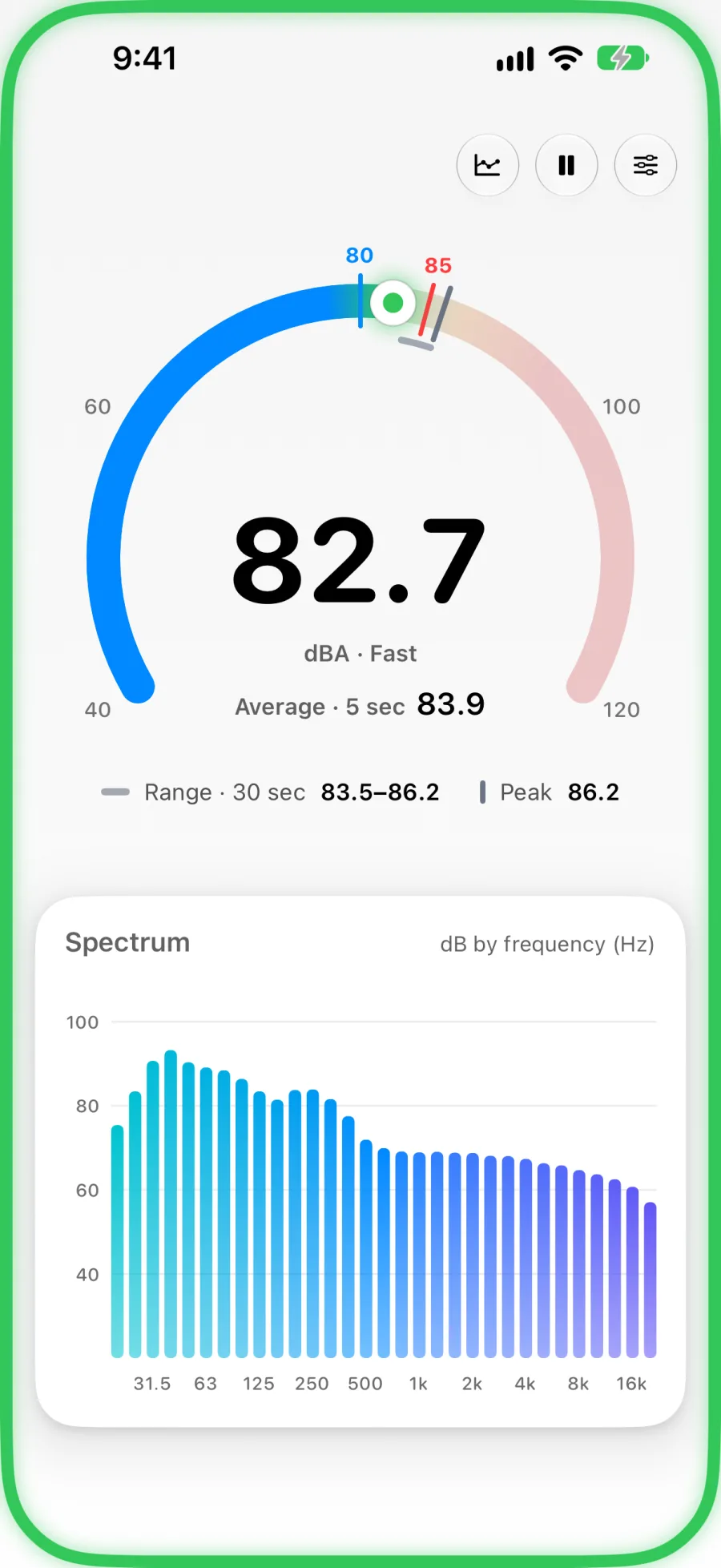
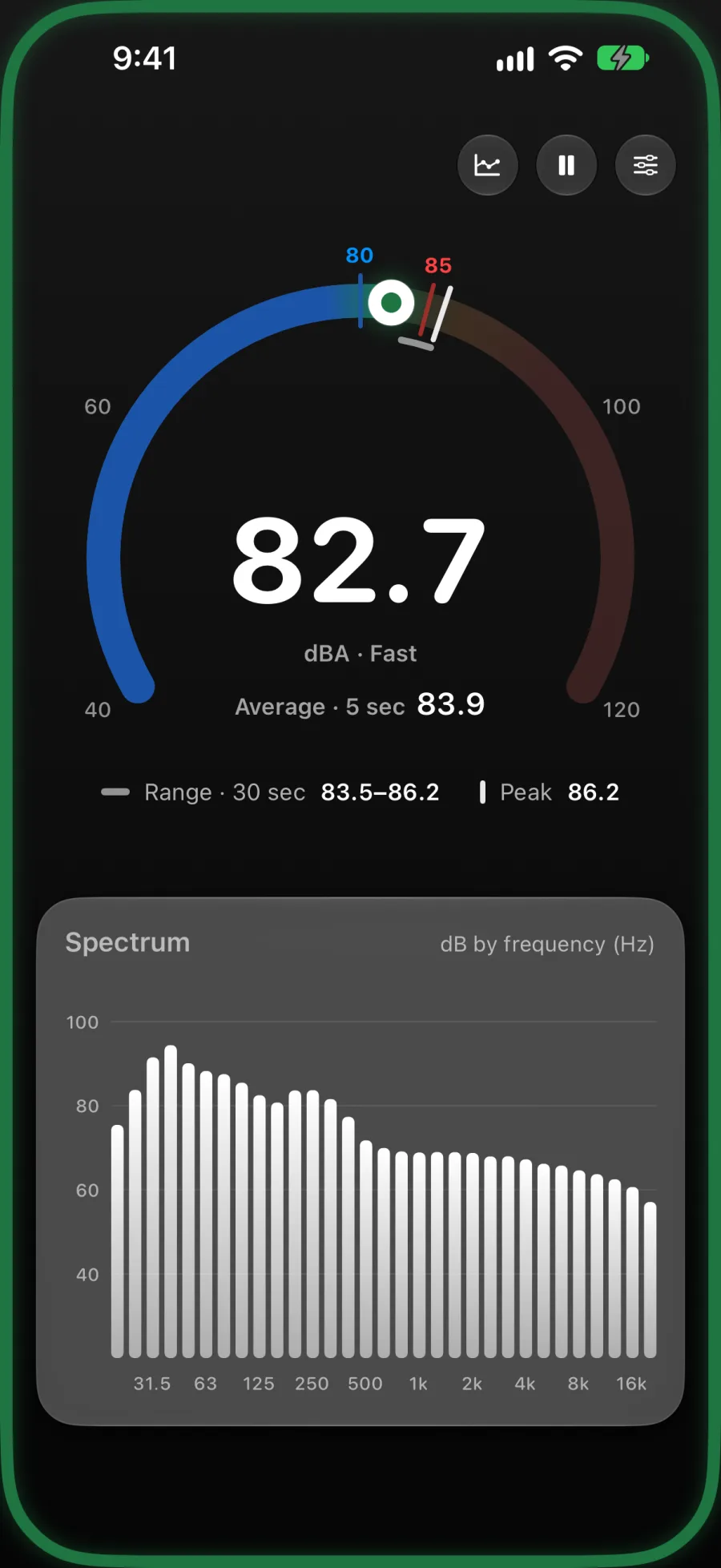
The gauge shows a large live reading in dBA with the 5-second average beside it, readable from behind the console.

A thin band shows where the room has mostly been over the last 30 seconds: from the level it stayed above 90% of the time to the level it passed only 10% of the time (L90 to L10). A single loud moment barely moves it.

A peak tick works like a console’s peak hold. It jumps to a new high, holds for 2 seconds, then falls back to the top of the band.

The gauge with the live reading, 5-second average, range band, and peak

Alerts Only You Notice

Turn on Target Range and set a lower and an upper limit. The border around the screen turns blue when the room is too quiet, green in range, and red when it’s too loud.

It follows the 5-second average, not the live reading, so a moment of feedback doesn’t set it off. There’s no sound, vibration, or flash, so only the person holding the device notices.

Target Range is off by default. Without it, the app is simply a meter.

Too quietIn rangeToo loud

See Where the Sound Is

Under the gauge, a live spectrum shows the unweighted level in each 1/3-octave band from 20 Hz to 20 kHz, so you can see where the sound is concentrated right now.

It helps when you’re chasing feedback or a boomy low end, without opening another app.

Look Back at the Last Few Minutes

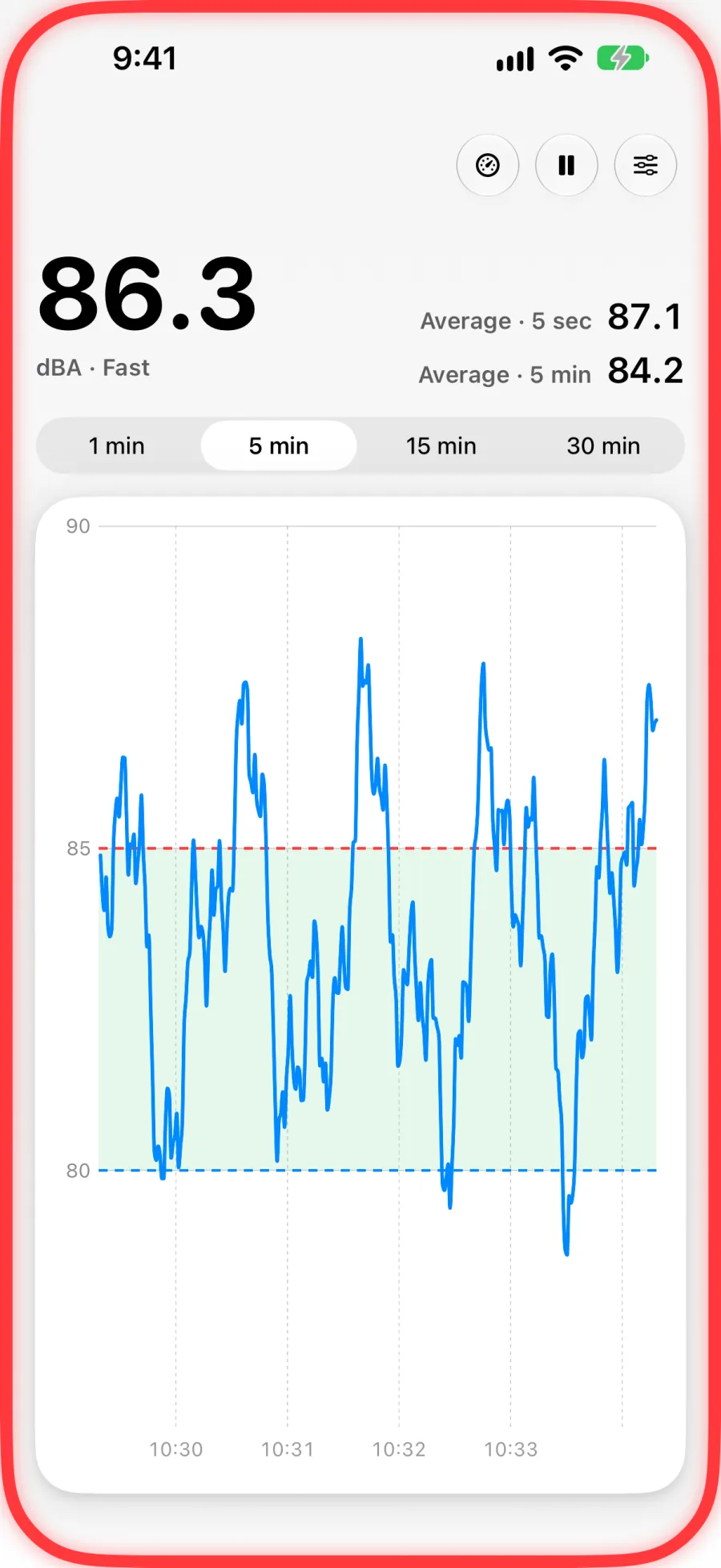
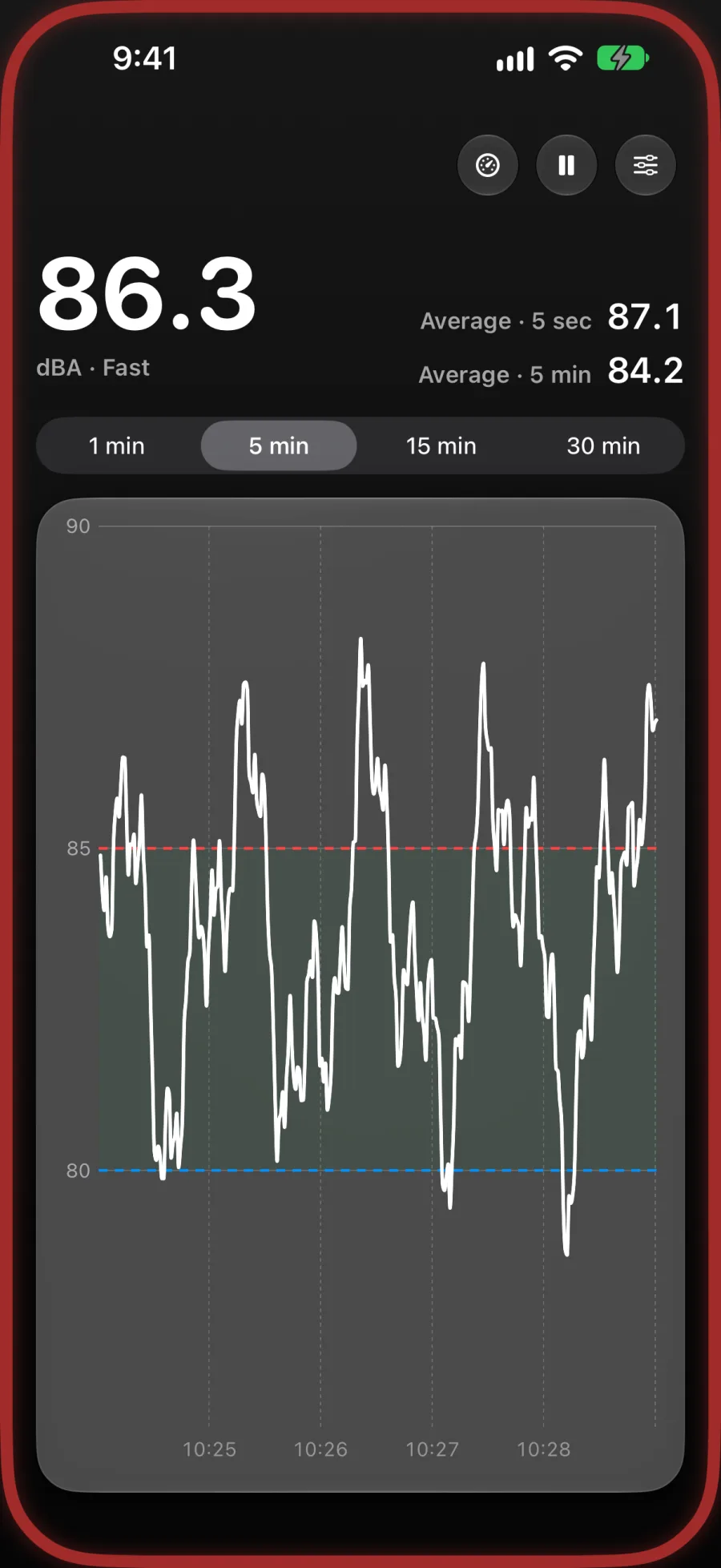
One tap switches the gauge to a real-time graph of the level, one point per second, over the last 1, 5, 15, or 30 minutes. Your target range is drawn in.

Drag across the graph to read the level at any moment. The live number and the 5-second average stay at the top.

The real-time graph of the last 5 minutes, with the target range drawn in

Standard Weightings

Readings are in dBA, the weighting hearing-safety limits and most venue targets use. Turn on Show dBC Reading in Settings for a second reading that includes more of the bass.

Fast (125 ms) and Slow (1 sec) responses follow the IEC 61672-1 standard, so the app agrees with a real meter set the same way. Fast reacts right away; Slow smooths the reading so it’s easier to follow while mixing.

Made for the Booth

The app follows your device’s light or dark appearance, or you can set it in the app. Dark keeps the screen dim in a dark room or sound booth.

The screen stays awake while you meter. Pause freezes the display so you can read a moment, while measuring continues underneath.

Free and Pro

For iPhone and iPad running iOS 26 or iPadOS 26 and later, in the United States.

  • Free

    Everything you need to meter a room.

    • The meter, spectrum, and graph
    • Every built-in device profile
    • Target Range alerts
    • Banner ads, and the app never asks to track you
  • Pro

    A one-time purchase, not a subscription.

    • No ads
    • Calibrate any device against your own meter
    • Everything in Free

Coming Soon to the App Store